How to link generated pages
NOTE - For best experience, please use the customize functionality on Desktop.
You can link the generated html pages. This helps in prototyping user journeys and workflows. You can link pages using hyperlink on Text, Image and button url. The editor will add an inline <a> for creating link, as shown below:
<p>Welcome to this <a href=”pagehtmlview?page=1573665788576”>new</a>page!</p>
Hyperlinking internal pages shortcut
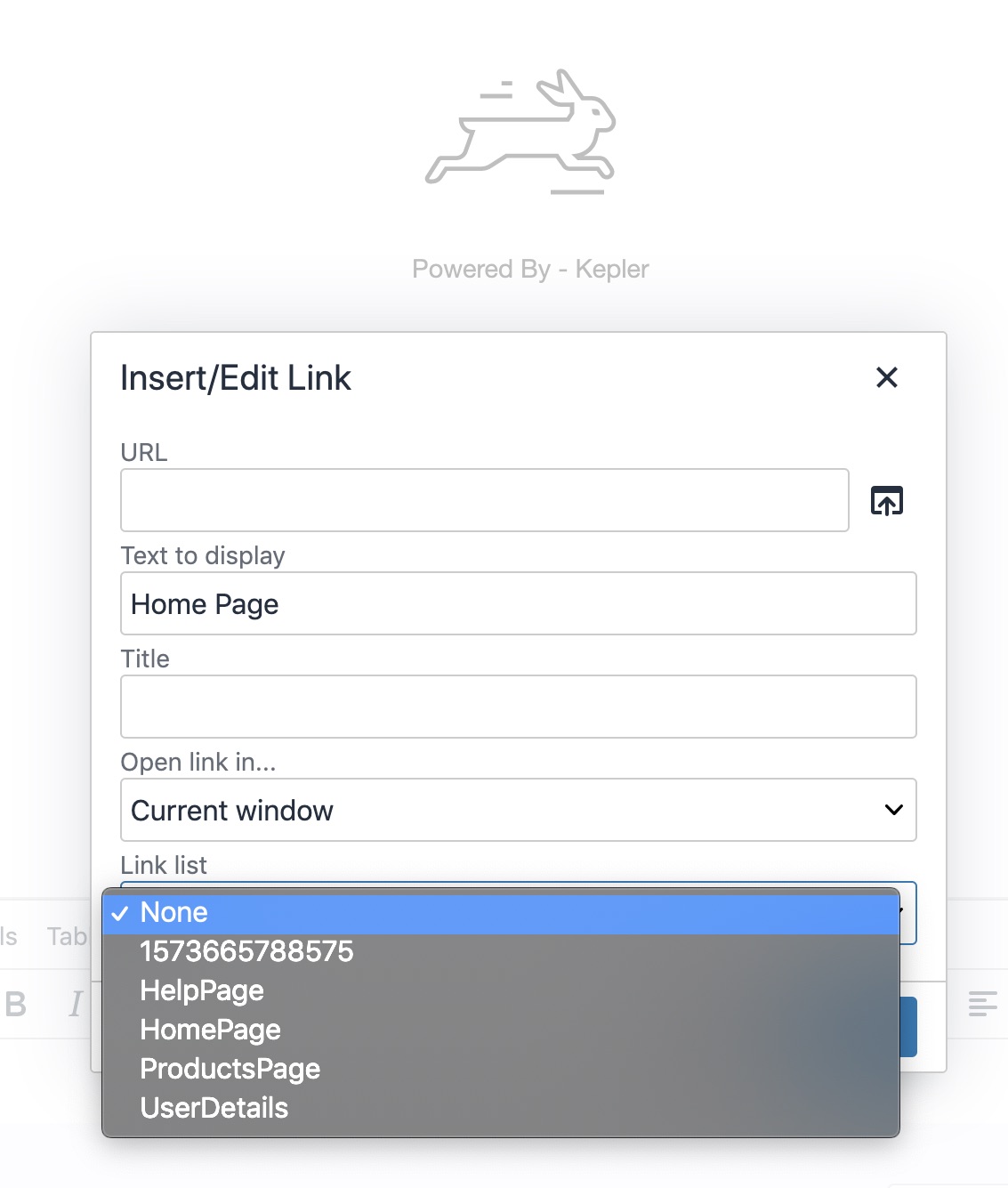
A quick alternative to link idea2Life generated pages is to select the destination page from “link list” drop down available on bottom of the “Insert/Edit link” pop-up.
1. Go to the editor screen, and select the text/image/button you want to hyperlink. From the top menu bar, select the “link” button on the toolbar as shown below:
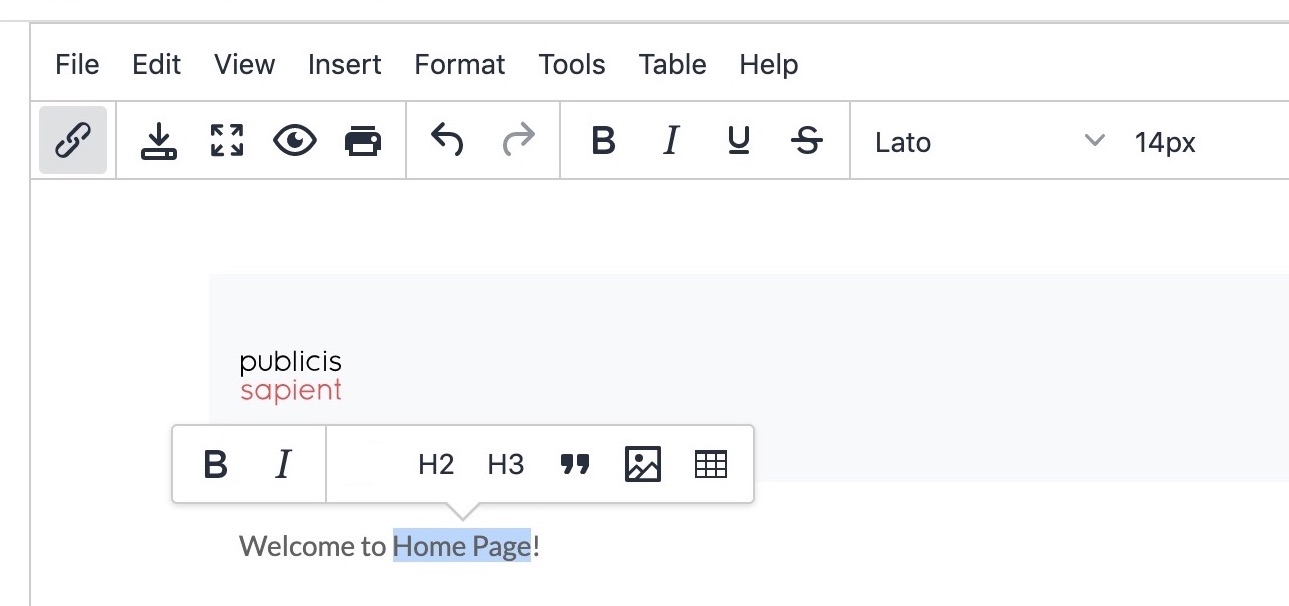
Select you page from “link list” drop down. Refer to the screen shot below.
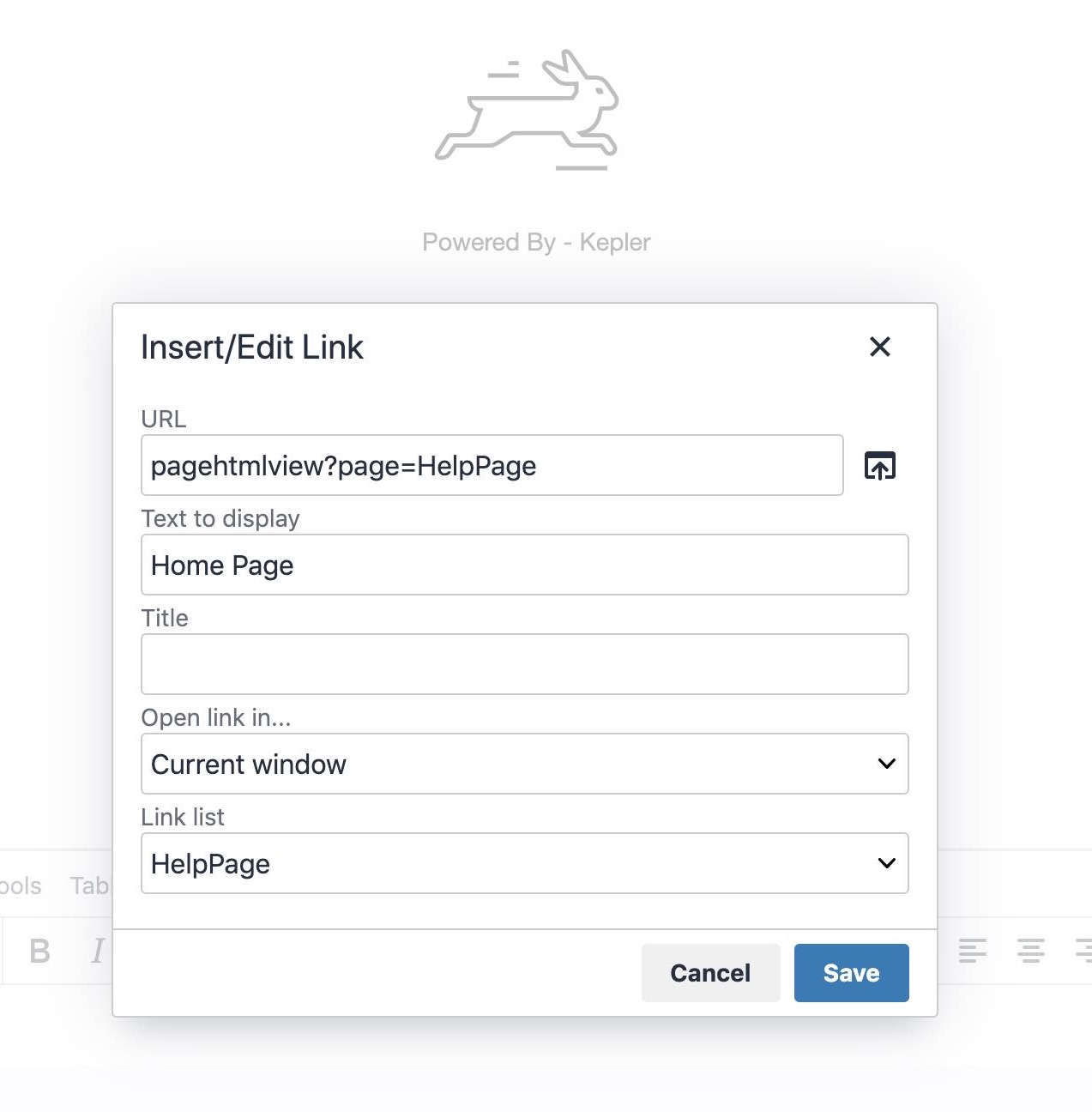
Below is the pop up view after the page selection.
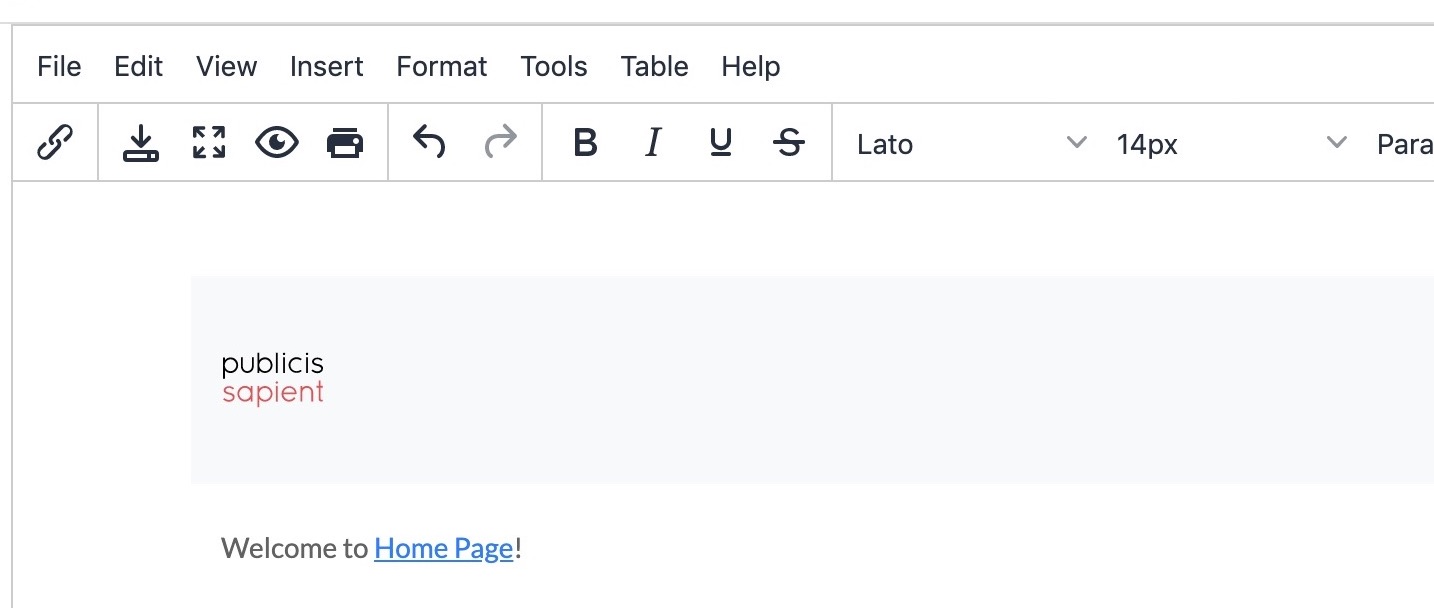
View of edited text with hyperlink added:
5. Press save button after you are satisfied with your changed content. Similarly, you can link pages using images and button.

Linking external Pages
1. Go to the editor screen, and select the text/image/button you want to hyperlink. From the top menu bar, select the “link” button on the toolbar as shown below:
Paste the external URL in textbox and save. Now the link will be directed to the external URL.